
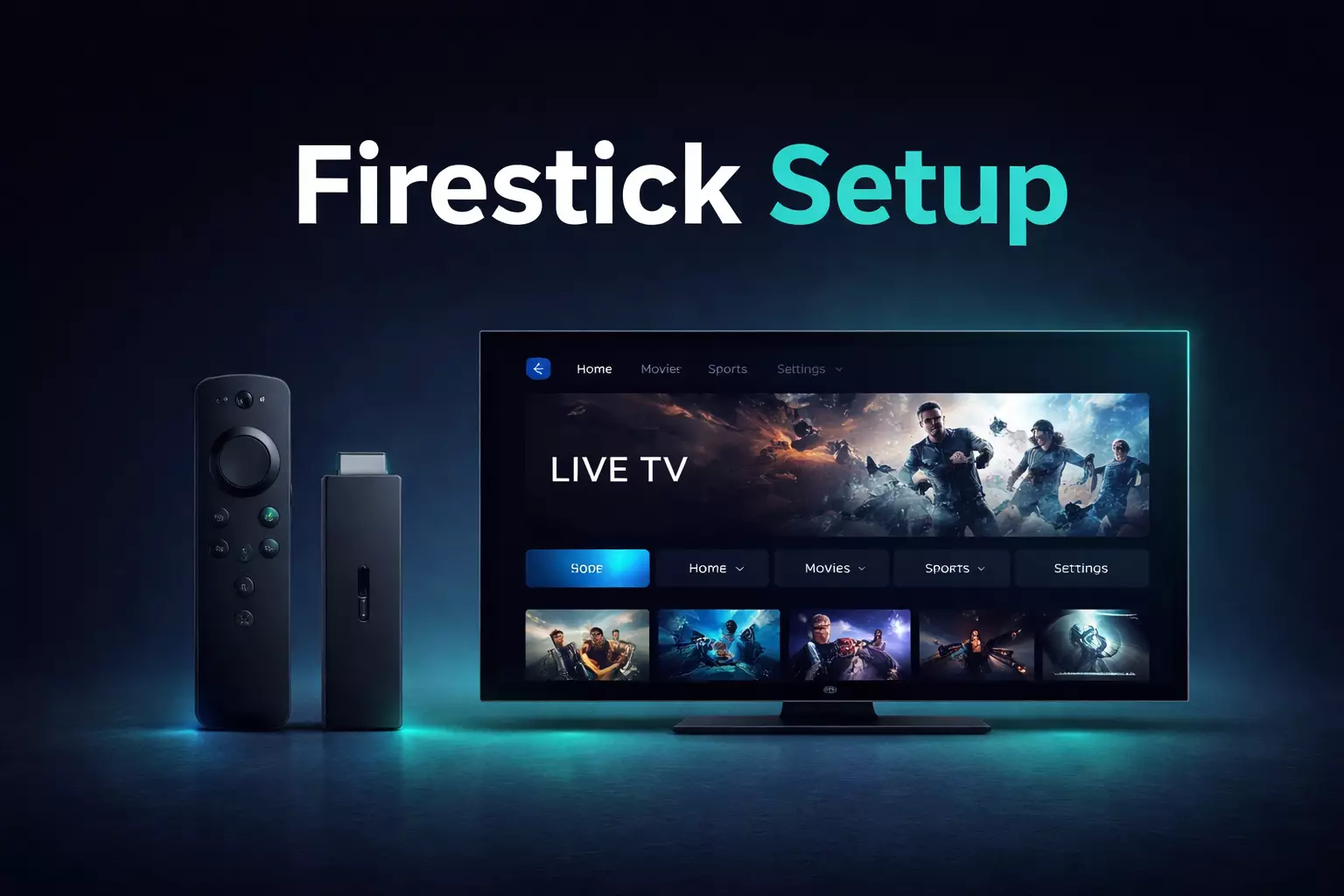
Before You Start
IPTV delivers live TV, sports and on-demand categories over an internet connection instead of a traditional cable box. Firestick is widely used because it is compact, easy to connect to a TV and supports common IPTV player apps. If you are still comparing services, start with our best IPTV service overview or visit IPTV USA, IPTV UK, and IPTV Canada for location-specific context.
For many users, Firestick is the quickest route from receiving login details to watching on the living-room TV. The steps below cover the basic Firestick setup flow without making the process more complicated than it needs to be. After this guide, you can continue with our IPTV vs cable comparison or review the best IPTV apps for streaming.
What to Prepare First
- A stable internet connection, ideally 16 Mbps or higher for HD viewing
- A Firestick connected to your TV and updated to a supported system version
- An IPTV player app such as TiviMate, IPTV Smarters or another supported app
- Your login details, usually Xtream Codes or an M3U playlist from the provider
IPTV Apps Commonly Used on Firestick
TiviMate is popular with viewers who want a polished, TV-first interface with channel groups, guide support, and a clean remote-friendly layout.
IPTV Smarters is another practical option, especially for users who prefer a simpler setup screen and quick access to live TV, movies, and series categories.
Firestick Setup Steps
- Connect the Firestick to the internet and confirm normal streaming apps open correctly.
- Install the IPTV player app you want to use.
- Open the app and select the login method supported by your provider.
- Enter the server URL, username, password or M3U playlist carefully.
- Wait while the app loads channels, categories and guide data.
- Test several live channels and switch sections to confirm everything loads properly.
Entering Login Details Correctly
Most setup problems come from small credential mistakes rather than the Firestick itself. Check capitalisation, use the full server address and avoid extra spaces when pasting details. If the app supports Xtream Codes, that option is usually the cleanest way to organise live TV and VOD categories.
Why Buffering Happens and How to Reduce It
Buffering is usually caused by unstable Wi-Fi, lower speed during peak hours, background apps using memory, or player settings that do not match the stream quality.
- Restart the Firestick and router if playback feels unstable
- Use 5 GHz Wi-Fi where possible or move the Firestick closer to the router
- Close unused apps and free up device storage
- Try another channel to see whether the issue is limited to one stream
Firestick Performance Tips
- Keep the Firestick software updated
- Use a player app that matches how you browse live TV
- Use Ethernet with an adapter if you want a more stable connection
- Store your login details securely so you can re-enter them quickly if needed